In this article, you'll learn how to find your way around a studio page and book from it, and how studios keep their schedule up to date.
Open a studio page
You can reach a studio page from a class page, from the Studios tab on Explore, from the map, or from a link the studio shared.
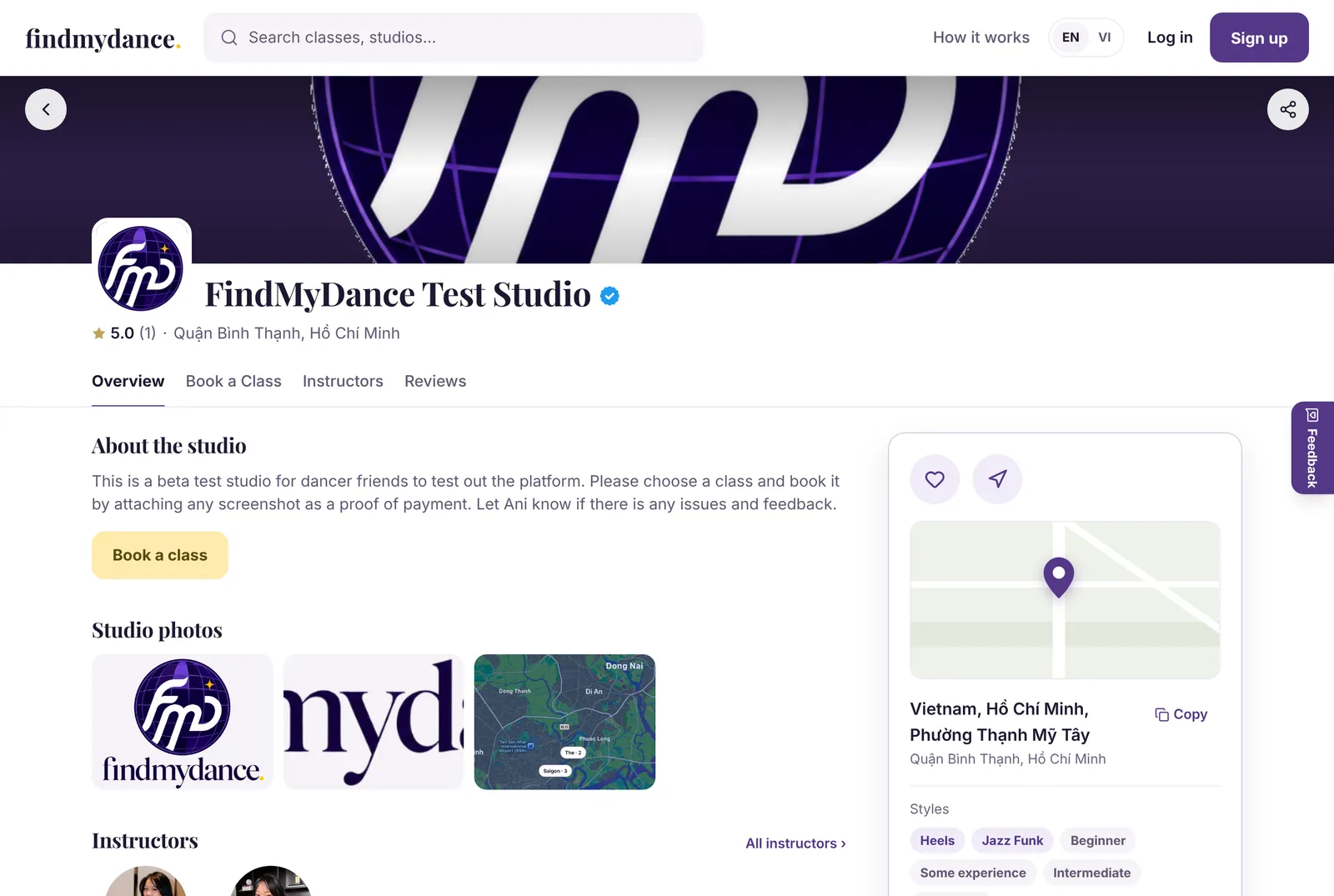
At the top you'll see the studio's name, a blue tick if it's verified, its rating and its area. Below that are the tabs:
- Overview: about the studio, photos, instructors, reviews, address and styles.
- Book a Class: the studio's upcoming classes by day.
- Updates: news and posts from the studio.
- Instructors: the teachers at this studio.
- Reviews: ratings and comments from dancers who took a class.
Book from a studio's schedule
To book from a studio page, follow these steps.
- Open the studio page.
- Click Book a Class, or the yellow Book a class button on Overview.
- Find the day you want. Each class shows its start and end time, name, level, instructor and spots left.
- Click a class to open it, then click Book this class.
Tip: Click the heart on the studio's Overview to save it, so you can find it again quickly.
For studios: keep your schedule up to date
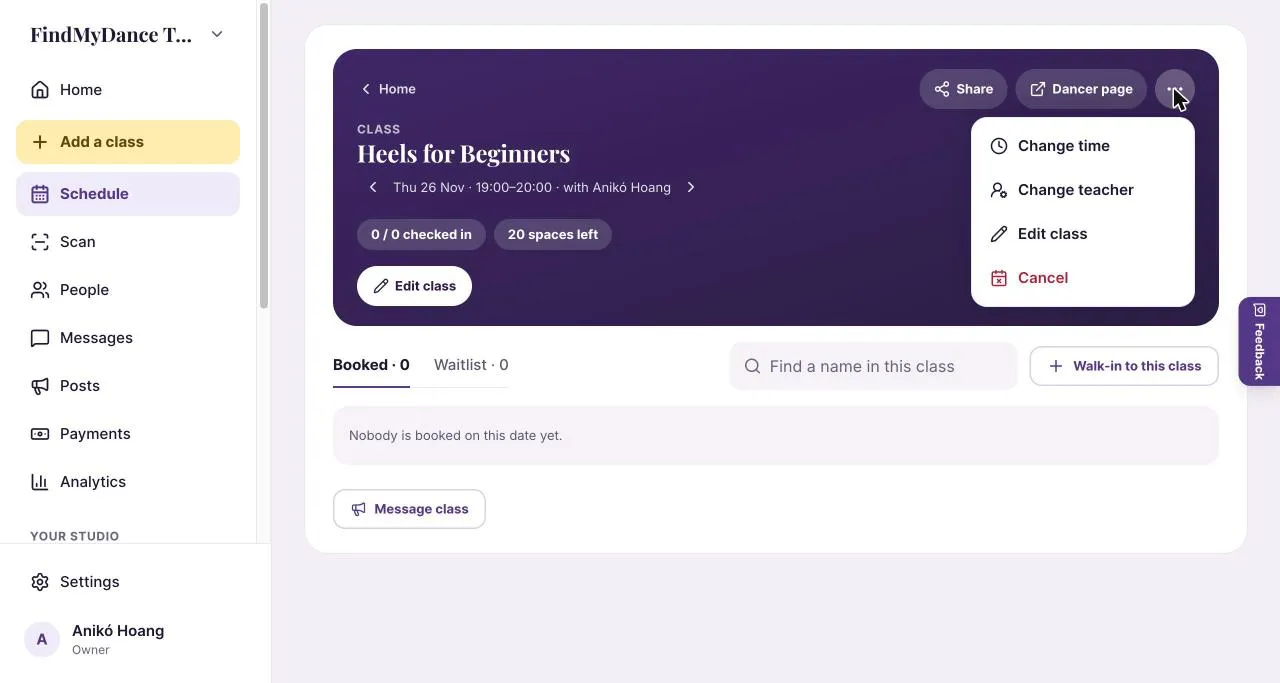
Your studio page updates itself when you change a class, so dancers always see the latest times. Go to Schedule, click the class, and open the ••• menu.
- Change a time: choose Change time, pick the new date, start time and length, then choose Only this date or This and every week after. Click Change time & send to tell booked dancers. Anyone who can't make the new time gets a full refund.
- Cancel a date: choose Cancel, then pick a reason so dancers know why: Teacher is sick, Studio closed, Not enough dancers or Other. You can move paid spots to another date or refund them, then send the message to booked dancers.
The same menu also has Change teacher and Edit class.