In this article, you'll learn how to import your schedule and review the classes before they go live.
Before you start
- You need a studio or teacher account on FindMyDance.
- Have your schedule ready as one of these:
- A caption: the text of a post, copied and pasted, with the post's link.
- Photos or screenshots: a photo or poster of your schedule.
- A PDF, Excel or CSV file. Save older .xls files as .xlsx or CSV first.
- You can add up to 6 files at once. Reading them can take up to a minute.
Import your schedule
To import your schedule, follow these steps.
- Go to Schedule in your studio area. You can also go to Home and choose Import a timetable under Shortcuts.
- Click Import schedule, at the top right next to Add a class. The Add your schedule box opens.
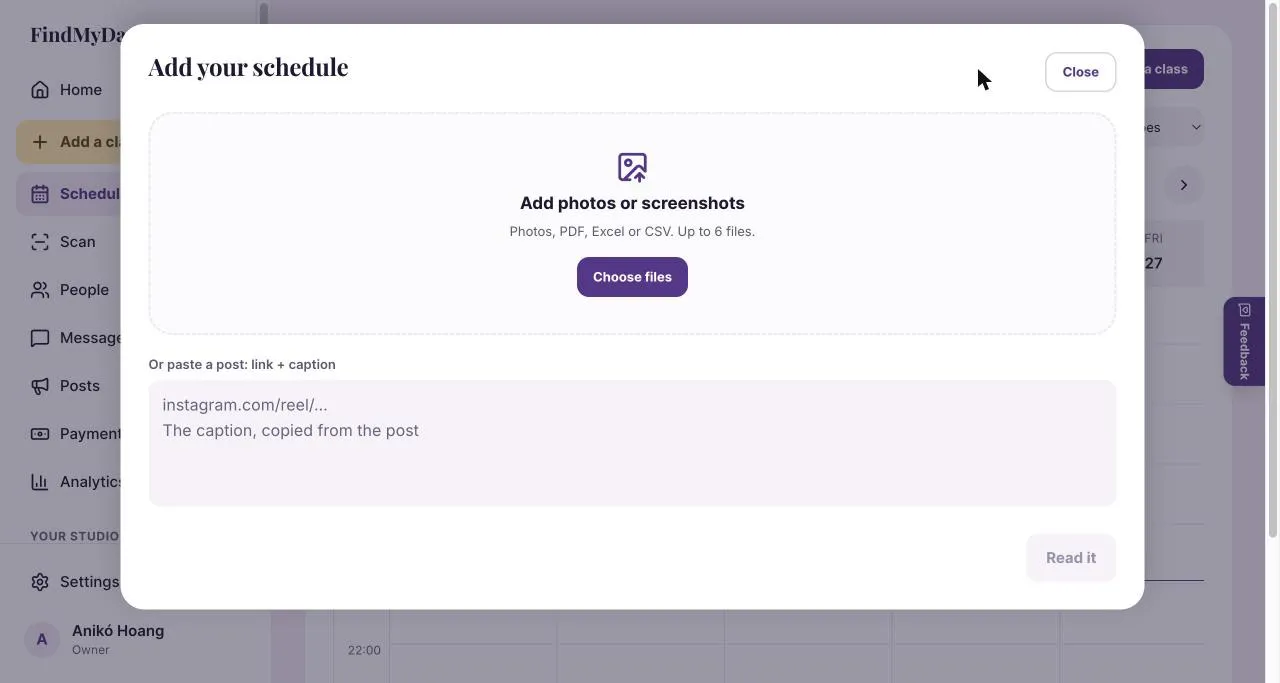
- Under Add photos or screenshots, click Choose files. Or, under Or paste a post: link + caption, paste the post's link and its caption.
- Click Read it. A progress bar shows each step: Reading your files…, Finding the classes…, then Almost done, checking against your schedule…
- On Check what we found, review each class: name, style, day and time. Anything that's missing is marked, for example Start date?, Time? or Price (đ)?. Fill it in.
- Classes you already have are marked Already live, not changed, and anything that isn't a class is marked Not a class, left out.
- Click the button that saves them, for example Add 5 classes as drafts. They're saved in Not live yet.
- Check each draft and publish it when it's ready.
Once published, your classes appear on Explore, on the map and on your studio's schedule.
Troubleshooting
- I only pasted a link. Instagram doesn't let us read a post from its link. Paste the caption with it, or add screenshots.
- No classes found in it. Try a clearer photo, one page at a time, or paste the caption instead.
- That file is too big. Try a smaller photo or one page.
- A class is missing. Add it by hand with Add a class.