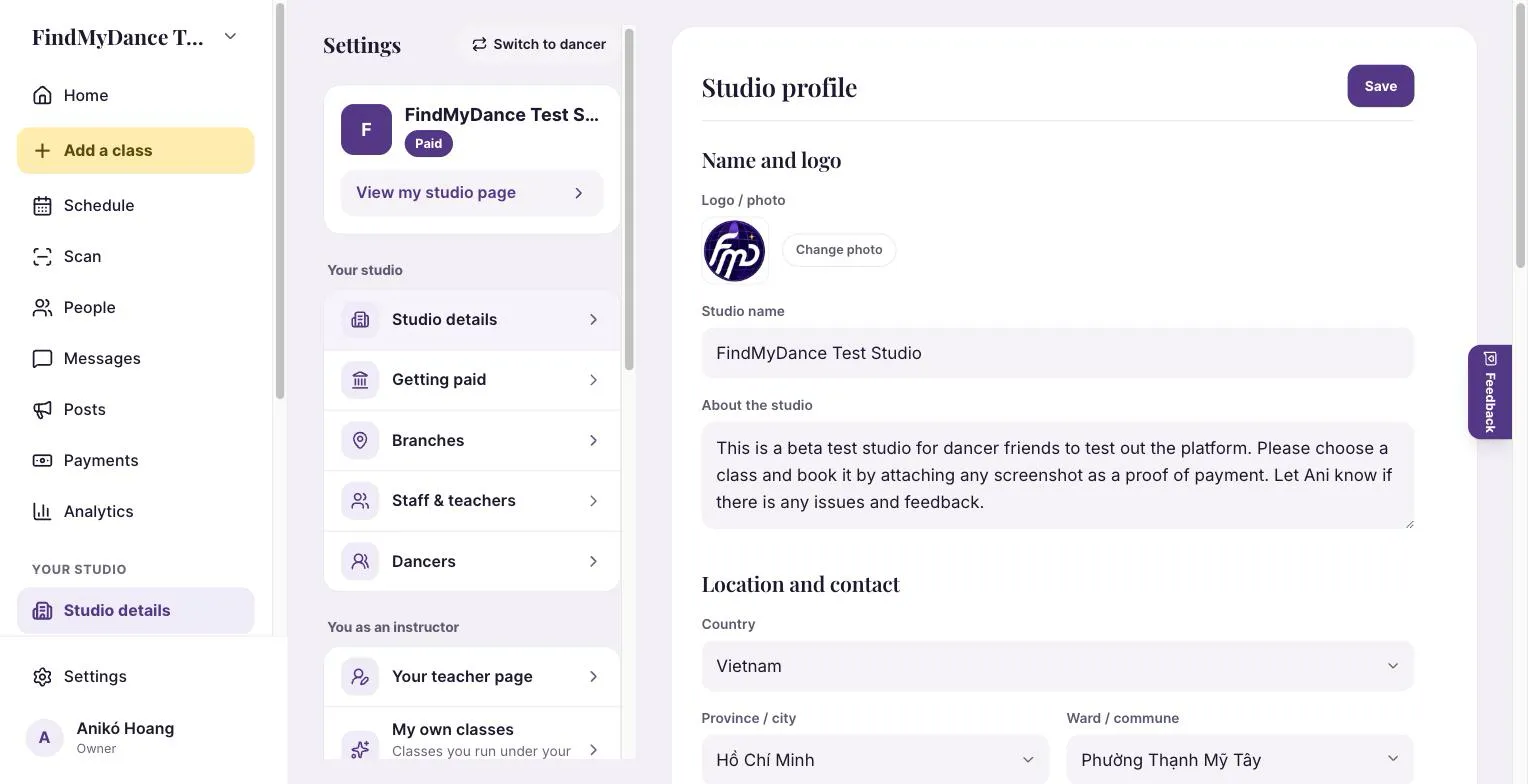
In this article, you'll learn how to set up a teacher or studio profile and add dance videos.
Before you start
- Have a clear photo of yourself or your studio logo, and a wide cover photo.
- Teachers usually join a studio by invite link. If a studio invited you, open the link to create your profile.
What dancers see on your profile
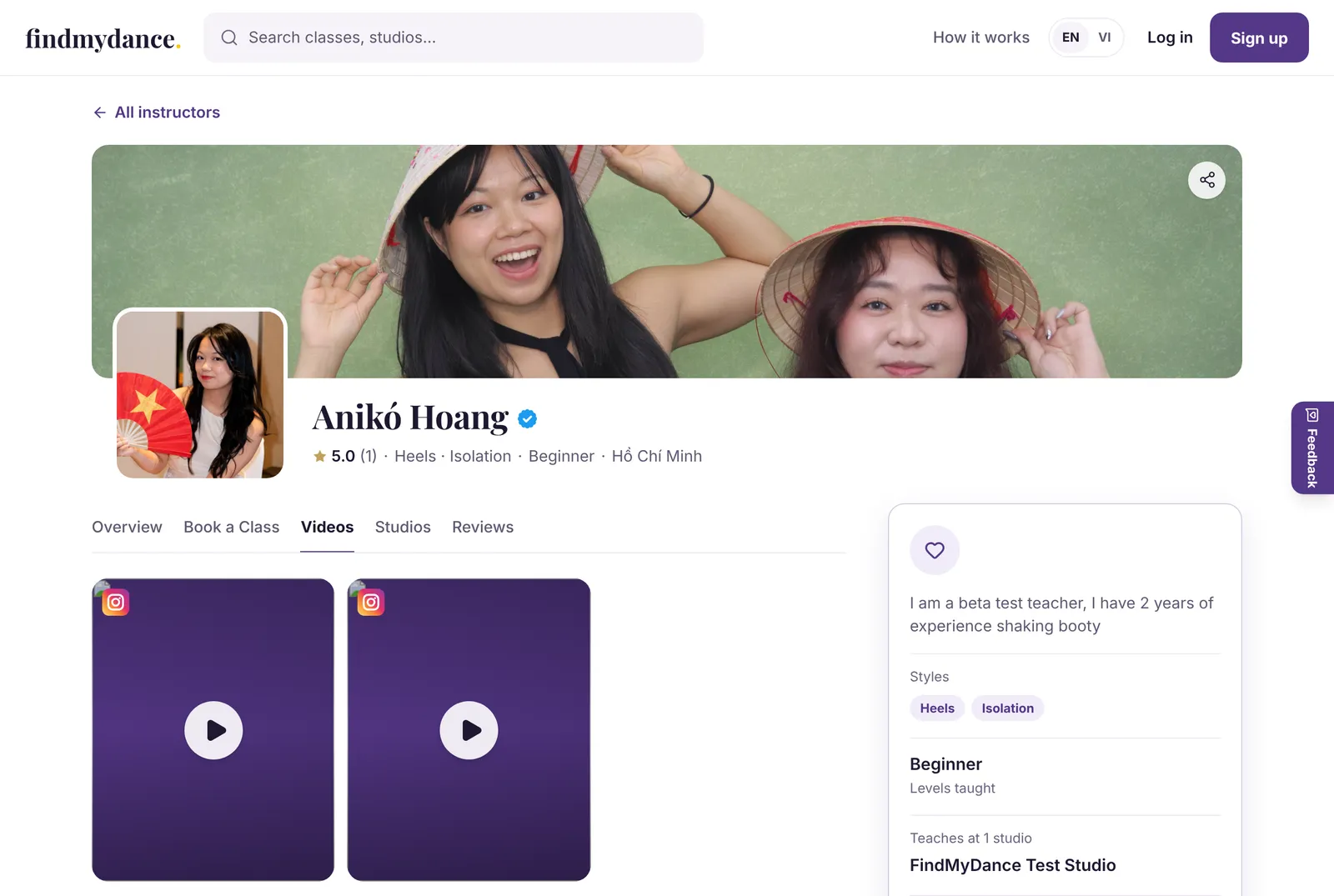
A teacher profile has five tabs: Overview, Book a Class, Videos, Studios and Reviews. Next to them, dancers see your bio, your styles, the levels you teach and the studios you teach at.
Set up a teacher profile
To set up your profile, follow these steps.
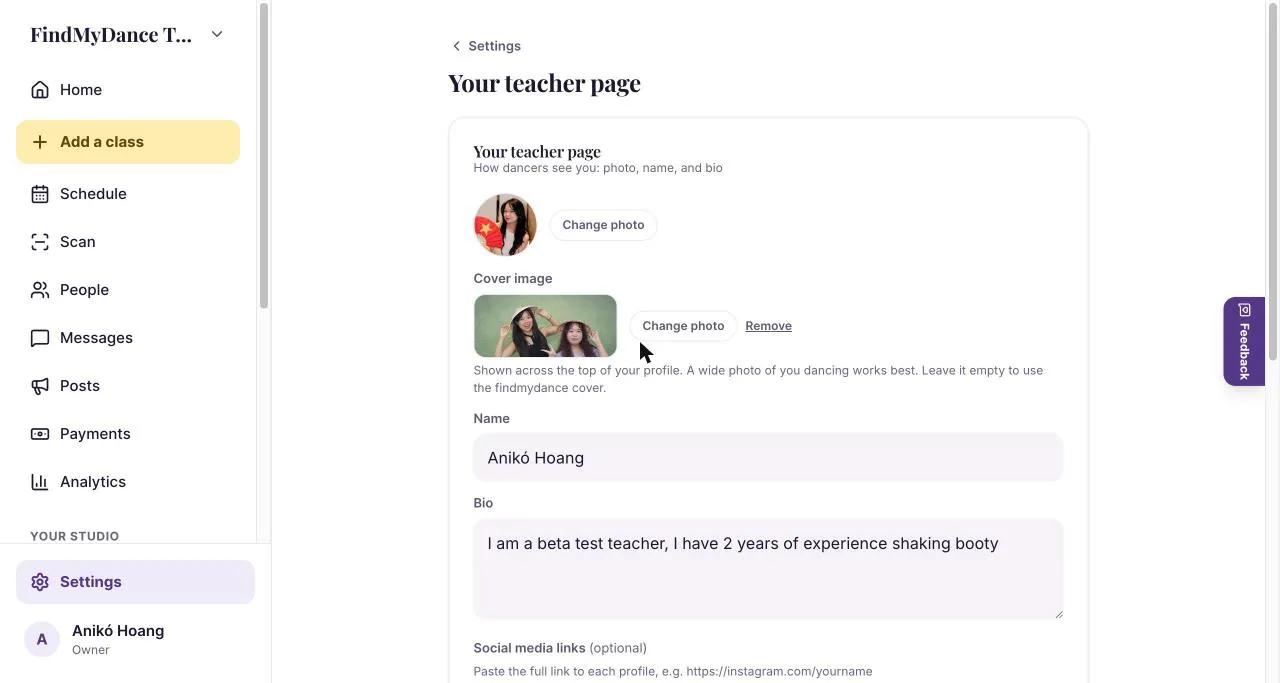
- Go to Your teacher page, under Your studio in the menu. You can also go to Settings and choose Your teacher page under You as an instructor.
- Click Change photo to add your profile photo. Under Cover image, click Change photo to add a wide photo of you dancing.
- Check your Name.
- Write a short Bio: how long you've danced, what you teach, and who your classes are for.
- Under Social media links, paste the full link to each profile: Instagram, TikTok, Facebook, YouTube or your website.
- Click Save.
Add dance videos
Videos let dancers preview your style and skills before they book. They show on your Videos tab.
- Go to Your teacher page.
- Under Favourite videos, click Add a video and paste a link to an Instagram post or reel, a TikTok or a YouTube video. You can add up to 6.
- Click Save. The videos show on your Videos tab.
Tip: Short clips work best. Show a few counts of choreo from a real class, so dancers know the level.
Set up a studio profile
- Go to Studio details. The Studio profile opens.
- Under Name and logo, click Change photo to add your Logo / photo, check your Studio name, and write a short description in About the studio.
- Under Location and contact, set your address so you appear on the map, and add your Phone. Read Find Classes on the Map for the address steps.
- Under What you teach, choose your Styles you teach and Levels you teach.
- Click Save.
- Under More settings, open Studio photos and click Add photos. You can add up to 8. The first photo is the cover on your studio page; tap the star on a photo to make it the cover.
- Under More settings, open Social media and paste the full link to your Instagram, TikTok, Facebook, YouTube or website. Then click Save. These show on your Overview tab.
- Invite your instructors so they appear on your studio page. Go to Staff & teachers, click Add staff, choose Instructor, and click Create invite link. If you add their email, the link is sent to them. Otherwise, send them the link yourself.