In this article, you'll learn how to approve payments, see who's coming, check dancers in, and message your students.
Before you start
- You need a studio or teacher account. What you can use depends on your plan. See Pricing.
- Staff can help. Go to Staff & teachers, click Add staff, choose Front desk, and click Create invite link. Front desk staff can book, check people in and look dancers up.
Approve payments
Dancers pay you directly by bank transfer. To confirm a payment, follow these steps.
- Go to Payments and open the To check tab. This opens Payments to approve, oldest first. You can also click payment to confirm under Needs you on Home.
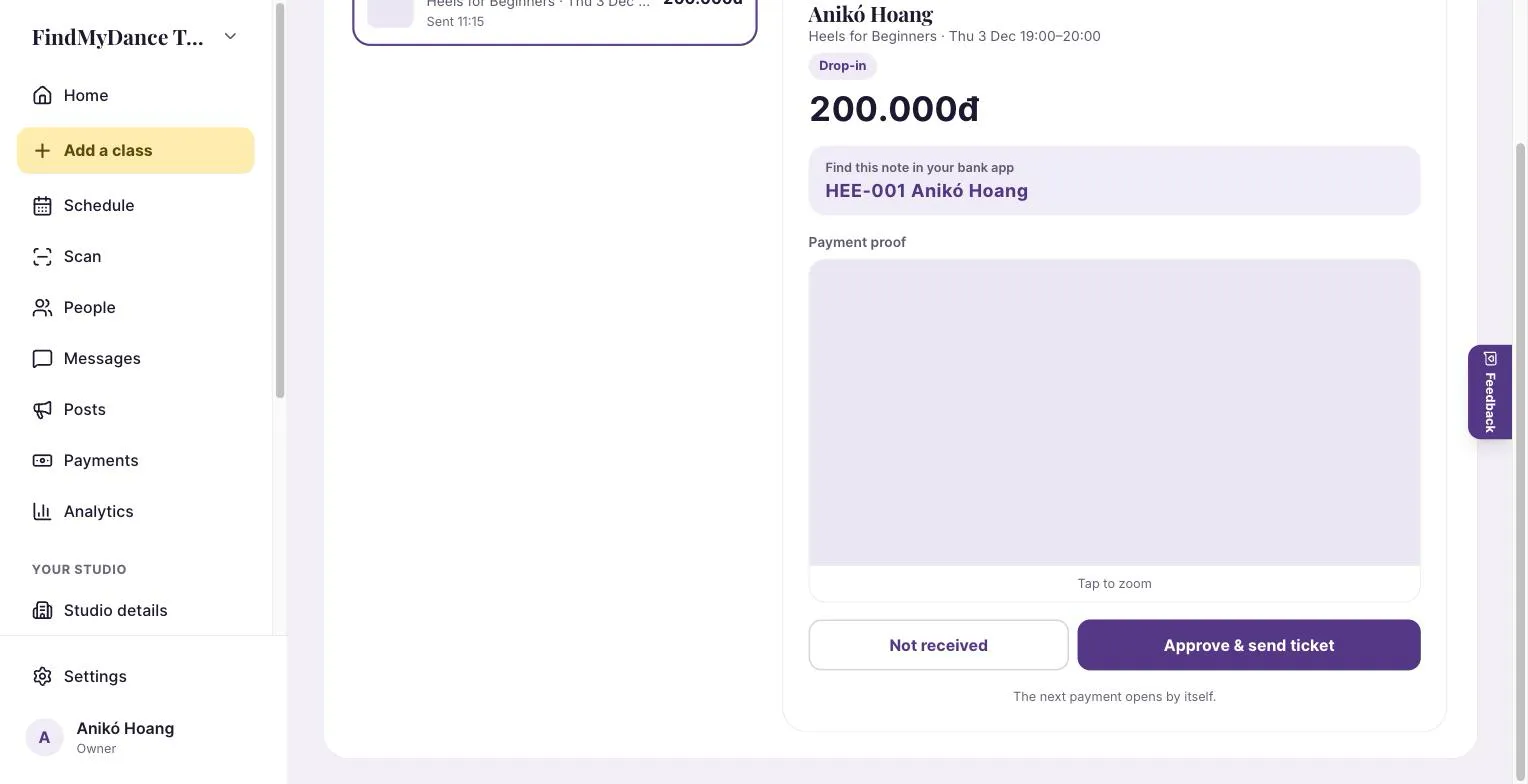
- Pick a payment on the left. On the right you'll see the dancer, the class and date, the amount, the transfer note and their Payment proof screenshot. Tap the screenshot to zoom.
- In your bank app, find a transfer with the same note (for example HEE-001 and the dancer's name) and check the amount has arrived.
- Click Approve & send ticket. The dancer's booking is confirmed and they get their ticket. If the money hasn't arrived, click Not received.
- The next payment opens by itself.
See who's coming
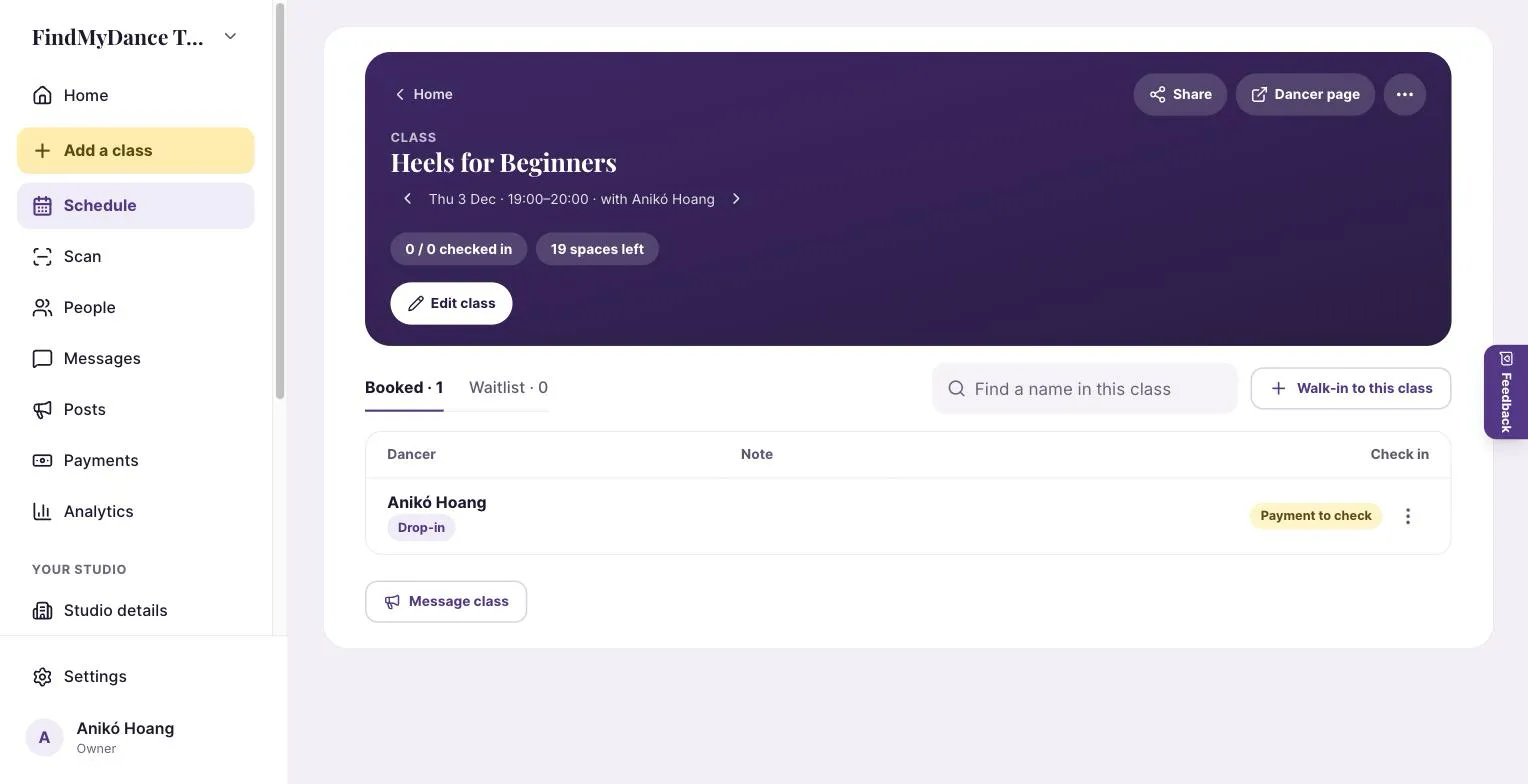
- Go to Schedule and click a class.
- Under Booked, you'll see every booked dancer, one row each, with their booking type (for example Drop-in) and any note. Until you approve their payment, the Check in column shows Payment to check. People waiting for a spot are under Waitlist.
- Click a name to open the dancer's details. You'll see what they've paid at your studio, their bookings, payments and reviews, and buttons to Message or Book them. To move a booking to another date, click Move next to it.
Check dancers in
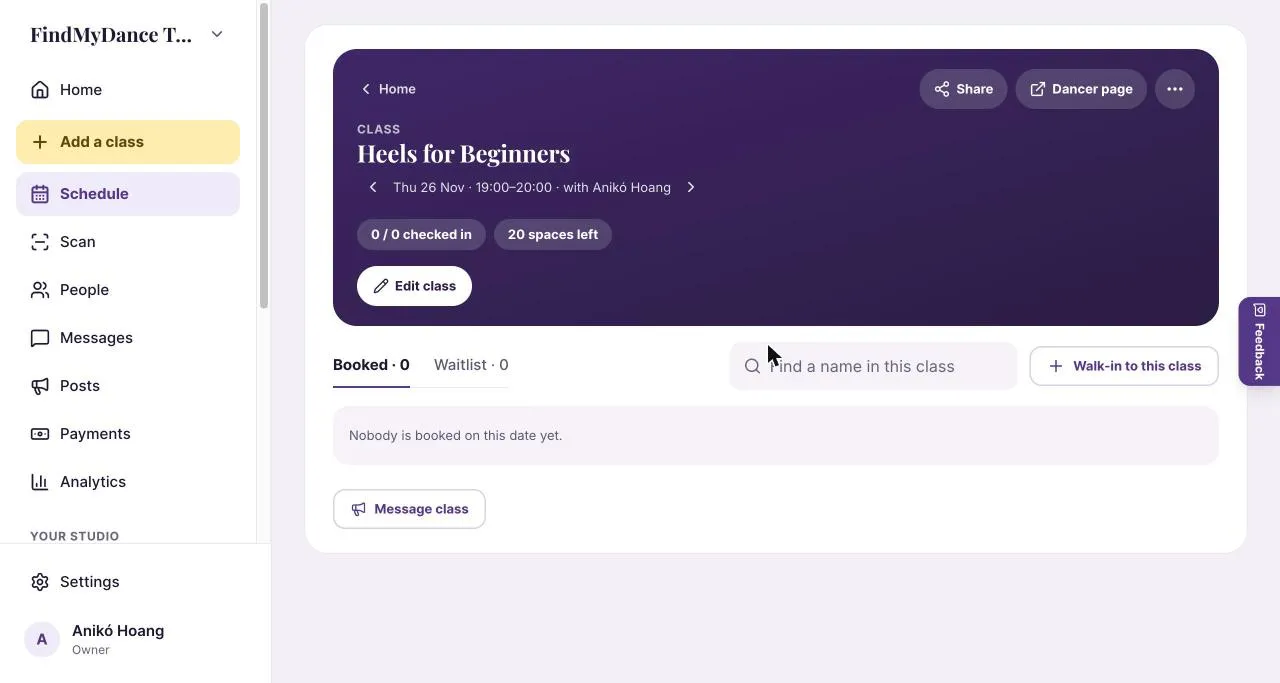
- To check in for all of today's classes, go to Scan. To check in for one class, go to Schedule and click the class.
- On Scan, scan the dancer's ticket with your camera, or type a ticket number or a name. In a class, use Find a name in this class.
- Click Check in next to the dancer. The count updates, for example 3 / 8 checked in.
Tip: Someone turned up without booking? Click Walk-in to this class to add them.
Keep notes on your students
Add a private note to a dancer, such as their level, an injury to watch, or the piece they're working on. Click the dancer's name, open the Details tab, write in Notes (staff only) and click Save. Only you and your staff can see it.
To leave a note on one booking instead, click ⋮ on the dancer's row in the class and choose Note for the teacher.
Message your class
To message everyone in a class, follow these steps.
- Go to Schedule and click the class.
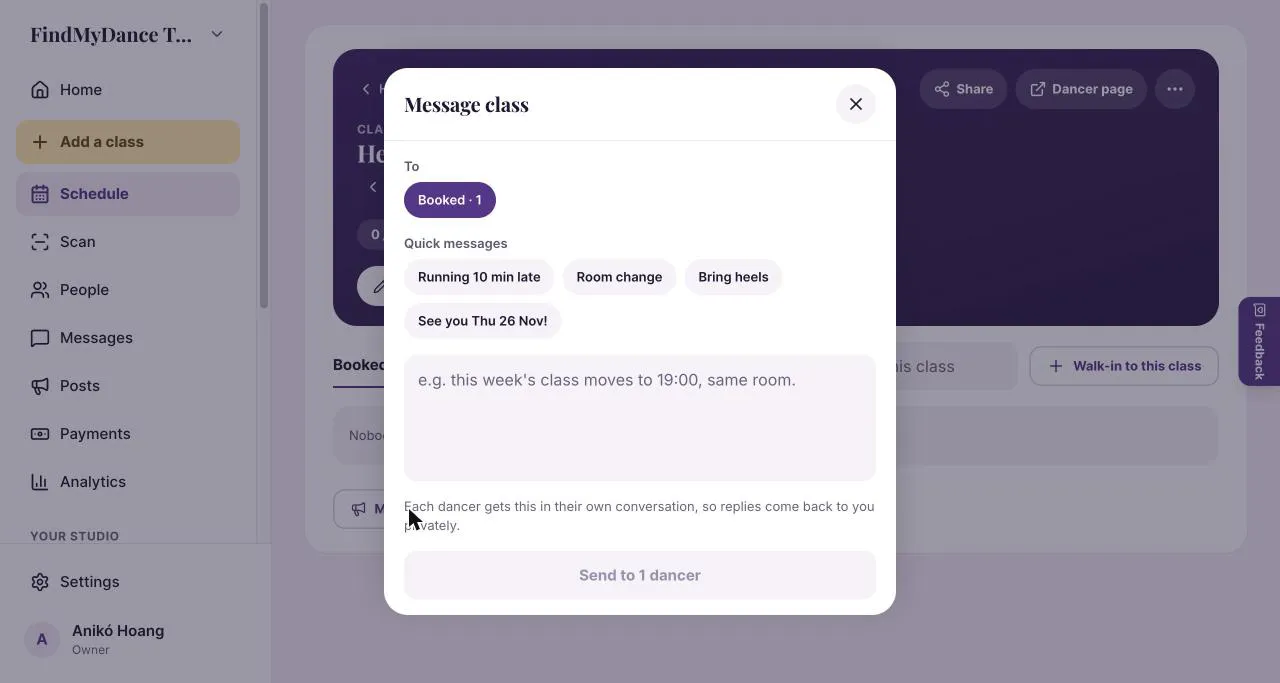
- Click Message class.
- Under To, choose who gets it: Booked or Waitlist.
- Write your message, or pick one of the Quick messages, such as Running 10 min late or Room change.
- Click send. The button shows how many dancers will get it, for example Send to 1 dancer. Each dancer gets the message in their own conversation, so replies come back to you privately.
To talk to one dancer, open Messages and choose the conversation.